How to make an Instagram photo dump on iPhone
A photo dump is a carousel of everyday photos posted together. On iPhone, the quickest way to make one look put together is a template: the layout is done, and you only choose the photos. Here’s how, with the free Seamly app.
Last updated · Free on iPhone and iPad · Five steps, about five minutes

What is an Instagram photo dump?
A photo dump is a carousel post of photos that show how a weekend, a trip or a month went, without one perfect shot. Instagram allows up to 20 photos or videos in one carousel, and a dump uses them for the coffee, the view, the friends and the blurry one everyone likes.
Posted as loose photos, a dump can look random. Laid out on designed slides with a few photos on each, it reads like a story people swipe through, and it can hold more than 20 photos.
What you need
- An iPhone or iPad with iOS 17 or later.
- The Seamly app, free on the App Store for iPhone and iPad and on Google Play for Android.
- Your photos, in the camera roll: between 7 and 26, depending on the template.
Make it in Seamly, step by step
Step 1: Get Seamly
Download Seamly from the App Store and open it. The app and most templates are free; templates marked Pro need Seamly Pro, which starts with a free trial.
Step 2: Pick a photo dump template
Go to Templates and choose Photo Dump, or search for “photo dump”. Tap a template to see every slide, then tap Use this template. Most are carousels of two to seven slides; a few are single story pages.
Step 3: Add your photos
Tap Add photos and pick your photos in the order you want them. Seamly fills the template’s photo spots in that order, so pick your strongest photo first: it lands on the cover. Tap any photo to adjust or replace it, and tap any text to write your own.
Step 4: Save every slide
Tap Export, keep All pages selected and save them to Photos. Each slide is saved as its own image, 1080 pixels wide and in page order.
Step 5: Post it in order
Tap Post to Instagram, or open Instagram yourself: tap +, choose Post, turn on multiple selection and pick the slides in order, 1, 2, 3. The order you tap is the order people swipe. Check that the first slide isn’t cropped to a square, since it sets the shape for the rest.
Tips for a better photo dump
- Open with your best photo. The first slide is the cover in the feed and on your profile grid.
- Mix it up. A wide shot, a close-up, people, food, a detail. Three similar photos in a row slow the swipe.
- Choose 3:4 if your grid matters. 3:4 slides (1080 × 1440) match the tiles of the profile grid; 4:5 (1080 × 1350) is the safe classic.
- Keep one theme. A weekend, a trip, a month. A title like “October” or “Lately” on the first slide tells people what they are swiping.
- End on something that lands: the last photo of the night, a sunset or a line of text.
Photo dump templates to start from

Scribbled

Big Word
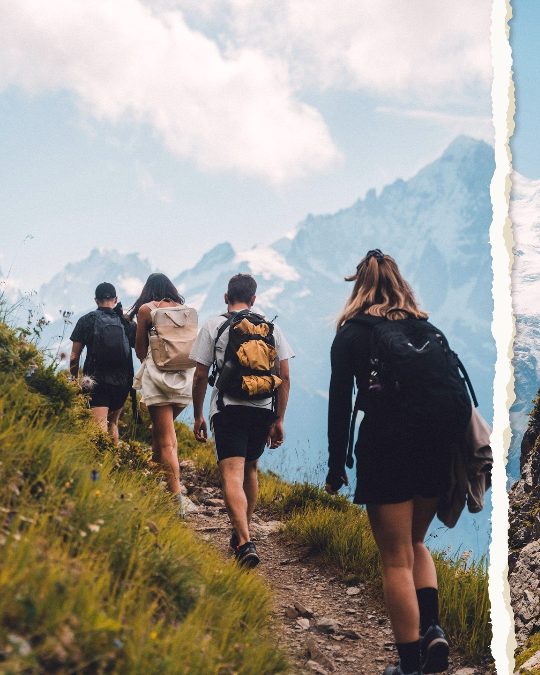
Torn Trail
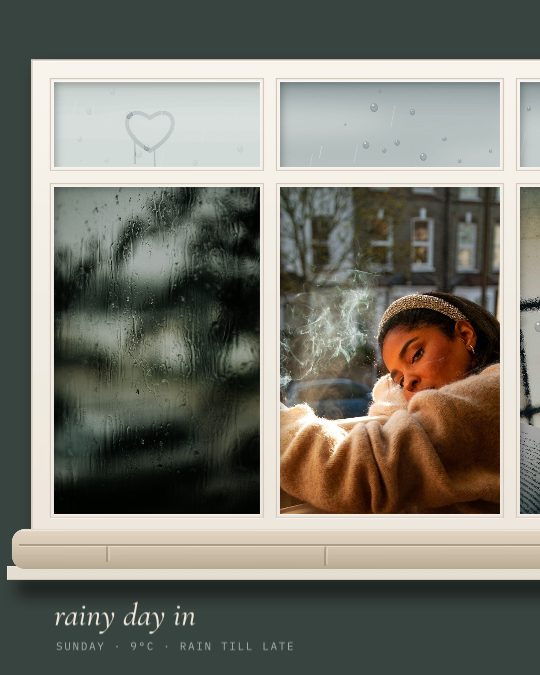
Window Seat

Date Stamp

Mosaic
Questions
Is Seamly free on iPhone?
Yes. The app is free to download and most templates are free. Templates marked Pro, high-resolution export and a few tools need Seamly Pro, which starts with a free trial.
How many photos can an Instagram photo dump have?
Instagram allows up to 20 photos or videos in one carousel. Templates that put several photos on each slide fit more: Mosaic holds 26 photos on two slides.
What size should photo dump slides be?
4:5 portrait (1080 × 1350) or 3:4 (1080 × 1440). Every slide in a carousel has the same shape, and Seamly’s templates are already the right size.
Can I make a photo dump for my story?
Yes. Photo Pile, Story Grid and Die Cut fit seven to twelve photos on one 9:16 story page.
Does it work on Android or a computer?
Yes. Seamly is on Google Play for Android with the same templates, and it runs in any modern browser at canvas.seamly.art.
Seamly is an app too
Make your photo dump on your phone with the Seamly app for iPhone, iPad and Android, with your photos straight from the camera roll.