How to make a seamless carousel for Instagram
A seamless carousel is one wide picture cut into slides, so the image carries on as people swipe. Here is how to size it, make it and post it without visible joins.
Last updated · Sizes for 4:5, 1:1 and 3:4 · Five steps in the free editor

What a seamless carousel is
An Instagram carousel is a post with up to 20 photos or videos that people swipe through. In a seamless carousel, also called a panorama carousel, the slides are cut from one wide design. A mountain range, a line of text or a coloured stripe runs off the edge of one slide and continues on the next.
It works because people want to see where the picture goes. The trick is to plan the whole width first, then cut it into slides that are exactly the same size.
Choose the size first
Every slide in a carousel has the same shape: the first slide sets it for the rest. Pick the slide shape, then multiply the width by the number of slides.
- 4:5 portrait, 1080 × 1350 per slide. The safest choice. It fills the most of the feed.
- 1:1 square, 1080 × 1080 per slide. The classic shape, if your profile uses squares.
- 3:4 portrait, 1080 × 1440 per slide. Instagram started accepting 3:4 photos in 2025, the shape of most phone cameras. Post a test first if you rely on it.
| Slides | 4:5 slides | 1:1 slides | 3:4 slides |
|---|---|---|---|
| 2 | 2,160 × 1,350 | 2,160 × 1,080 | 2,160 × 1,440 |
| 3 | 3,240 × 1,350 | 3,240 × 1,080 | 3,240 × 1,440 |
| 4 | 4,320 × 1,350 | 4,320 × 1,080 | 4,320 × 1,440 |
| 5 | 5,400 × 1,350 | 5,400 × 1,080 | 5,400 × 1,440 |
| 10 | 10,800 × 1,350 | 10,800 × 1,080 | 10,800 × 1,440 |
| 20 | 21,600 × 1,350 | 21,600 × 1,080 | 21,600 × 1,440 |
Three to five slides is a good length for a panorama. Past that, each slide needs something new to look at, or people stop swiping.
Make it in Seamly, step by step
These steps use the free web editor at canvas.seamly.art. The iPhone, iPad and Android apps make seamless carousels too.
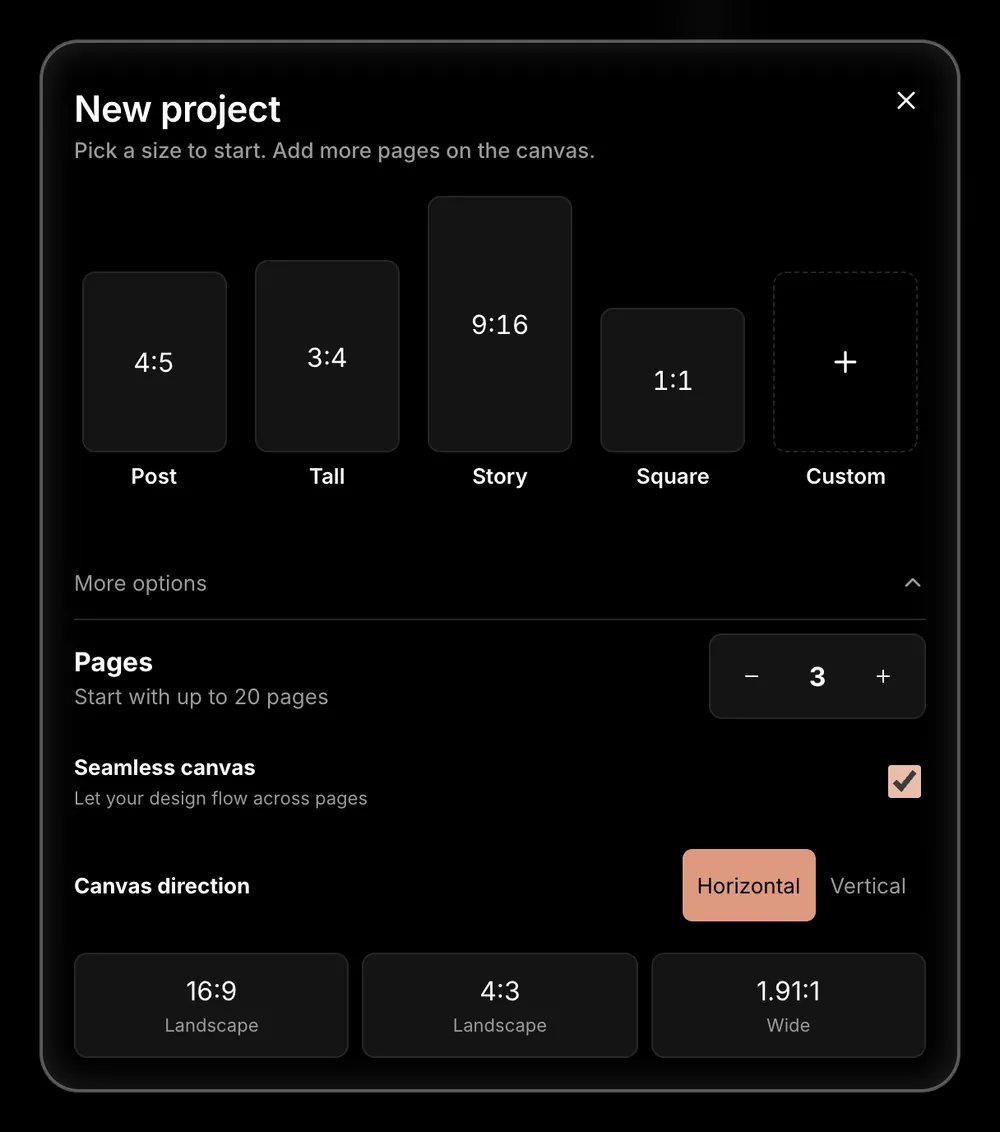
Step 1: Set up a seamless canvas
Choose New project and open More options. Set the number of pages, up to 20, and switch on Seamless canvas so your design can flow across them. Keep the direction Horizontal, then pick the size: Post is 4:5, Square is 1:1 and Tall is 3:4.
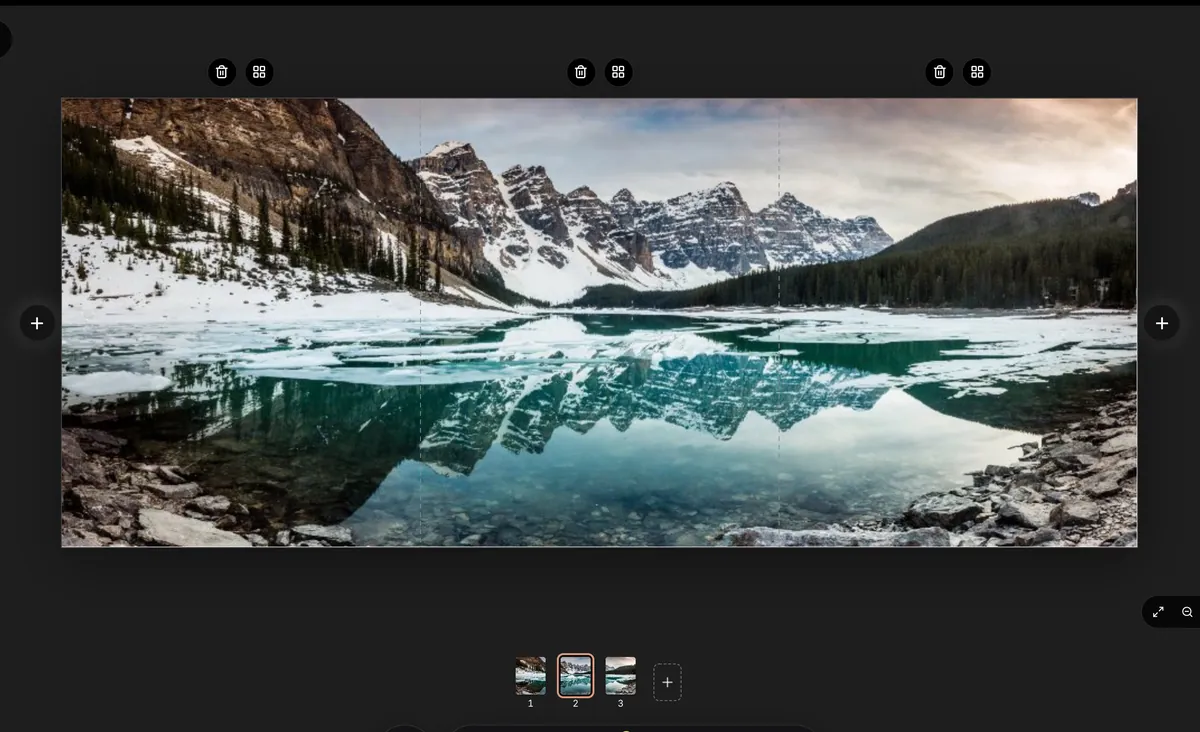
Step 2: Place one wide photo across every slide
Choose the orange + button, then Photo. Drag the photo to the top-left corner of the canvas and pull its corner handle until it covers every page. The dashed lines show where one slide ends and the next begins.
A photo that is already about as wide as the canvas needs the least cropping. Three 4:5 slides make a 2.4:1 canvas, so a landscape or a phone panorama fits well.
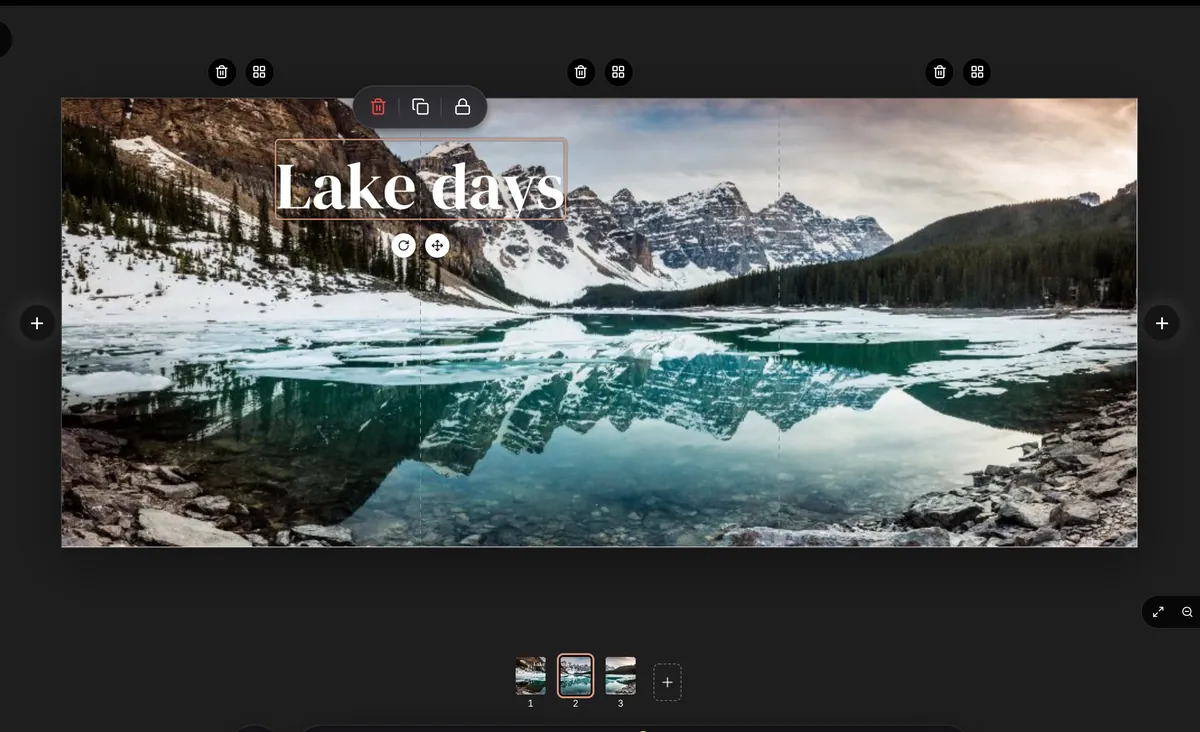
Step 3: Add text and details across the seams
Choose Text, type your words and pick a font, colour and size in the text tray. Then drag the text over a seam on purpose. A word that starts on one slide and finishes on the next is a strong reason to swipe.
Keep faces and small words away from the cut lines unless you mean to split them. A seam through someone’s eye, or through the middle of a short word, rarely looks good.
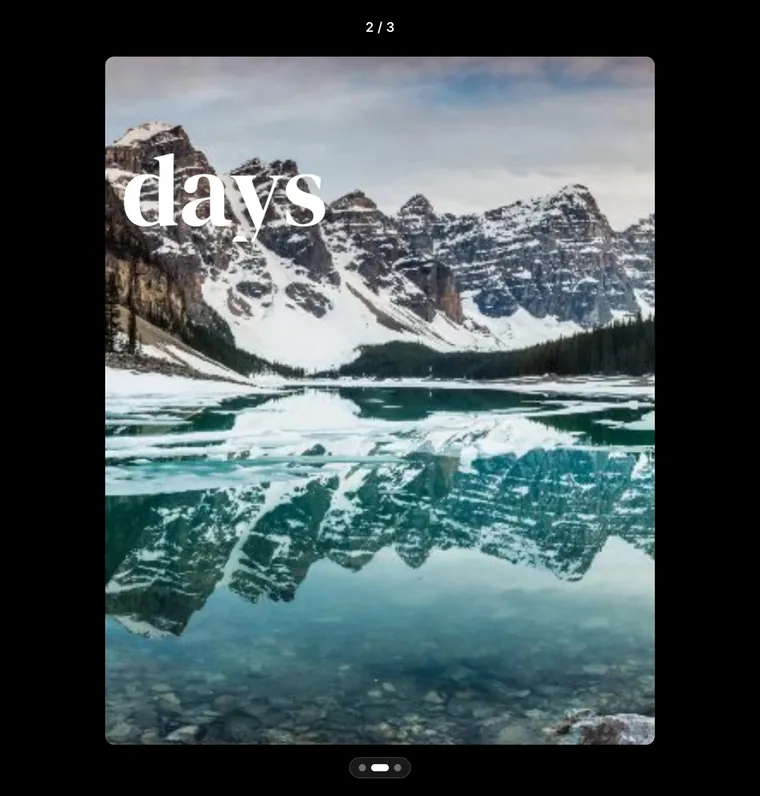
Step 4: Check each slide on its own
Open the … menu and choose Preview. It shows every slide the way people will see it, one at a time. Make sure each slide still makes sense alone, especially the first. It is the cover in the feed and the thumbnail on your profile grid.
Step 5: Export every slide
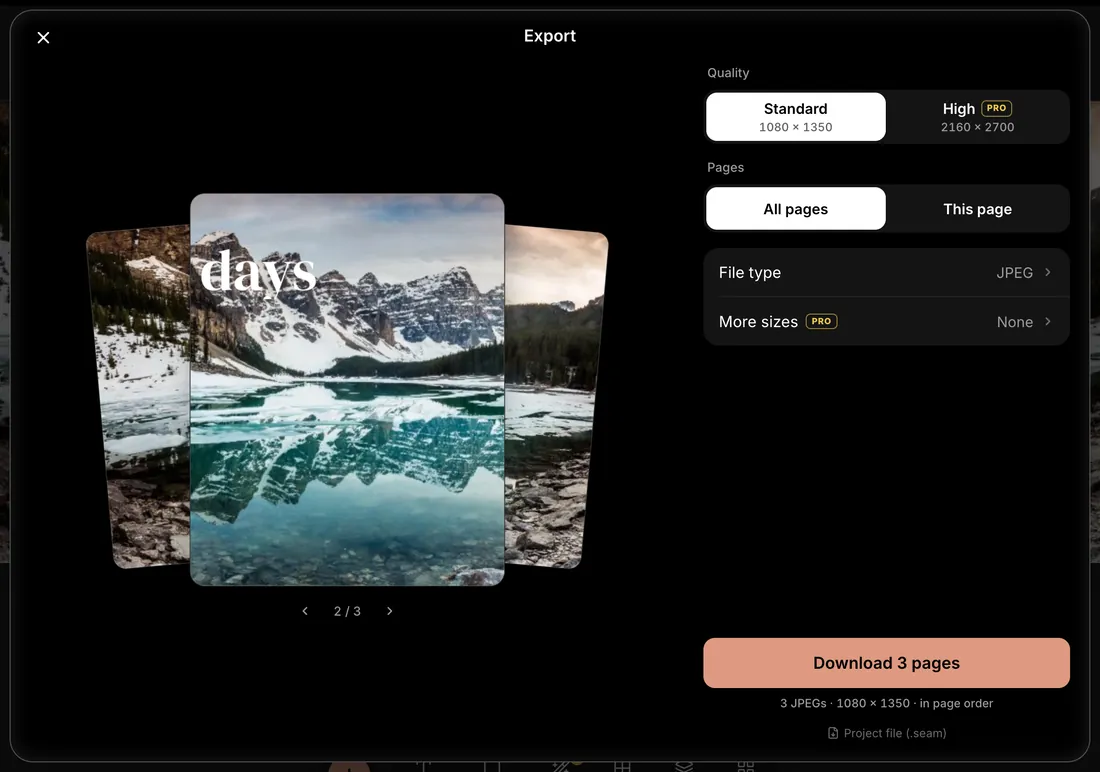
Choose Export, keep All pages selected and download. Seamly saves one image per slide at 1080 pixels wide, numbered in page order, as JPEG or PNG. Seamly Pro adds a high-quality size at twice the resolution.
Post it in the right order
- In Instagram, tap +, choose Post, then turn on multiple selection.
- Pick the slides in order: 1, 2, 3 and so on. The order you tap is the order people swipe.
- Check the crop on the first slide. If Instagram shows it as a square, tap the crop button so the whole slide shows. The first slide sets the shape for all the others.
- Swipe through once before you share. Every slide should line up with the next.
Post carousels of more than 10 slides from the Instagram app. Some scheduling tools still stop at 10.
Tips for clean seams
- Export every slide at the same size. 1080 pixels wide means Instagram doesn’t resize them, which is the usual cause of thin lines between slides.
- Keep the cover’s subject in the middle. Your profile grid shows each post as a 3:4 crop. On a 4:5 slide, that trims about 34 pixels from each side.
- Lead the eye. A horizon, a road or a line of text that runs through every slide pulls people to the end.
- End on a slide that lands. Finish with the best part of the picture, a short message or what you want people to do next.
Common mistakes
- Posting the slides out of order, or letting Instagram crop the first one square.
- Cutting one long image by hand into slides of slightly different widths.
- Mixing slide sizes in one carousel.
- Small text or a face sitting exactly on a seam.
- Too many slides with nothing new on them.
Other ways to make one
- Seamless carousel maker: carousel templates that run across every slide, on iPhone, Android and the web.
- Panorama carousel guide: how many slides your photo needs, how to post a panorama, and a free splitter that needs no sign-up.
- Carousel templates: start from a seamless design and swap in your photos.
- The Seamly app on the App Store for iPhone and iPad, and on Google Play for Android.
Seamly is an app too
Make seamless carousels on your phone with the Seamly app for iPhone, iPad and Android, with your photos straight from the camera roll. Projects you start in the browser can follow you to your phone.